
QR Invoice in the Ticketing System
In this article you will learn how the PostFinance QR-bill payment method works together with the e-guma ticketing system.
In this article
Information about the QR-bill in the ticketing system
- The tickets are sent directly together with the invoice.
- Unpaid tickets also reduce the ticket quota. To avoid unpaid no-shows, we recommend selling tickets on invoice sparingly. Whenever possible, use instant payment (credit card payment in the online shop).
- During check-in, no verification is carried out by default to check whether the ticket has been paid or not. All tickets are granted admission by the system. Please contact us if you would like to change this setting.
- We recommend defining internal rules regarding payment deadlines and the procedure for unpaid invoices or tickets.
- No credit check or verification of the entered customer data takes place.
- The QR-bill is only available in Switzerland.
Requirements
For credits from ticket sales on invoice you need a QR-IBAN from PostFinance. Learn here how to apply for a QR-IBAN at PostFinance. Incoming payments are transferred by PostFinance daily and in total from your QR-IBAN to your business account.
If you already use the QR-bill in the voucher system, you can use the same QR-IBAN for the ticketing system.
Activation
Costs
Activating the QR-bill in e-guma is free of charge. PostFinance does not charge any commission or fee for QR-bills. Fees may only apply for payments made at the post office counter. More information.
Advantages
- Automatic generation QR-bills are generated directly by e-guma, eliminating the need for manual entry. All required settings are already stored in e-guma.
- Automatic payment control Manual payment checks for paid ticket invoices are no longer required. PostFinance payment files are automatically imported by e-guma and orders are automatically marked as paid.
Settings
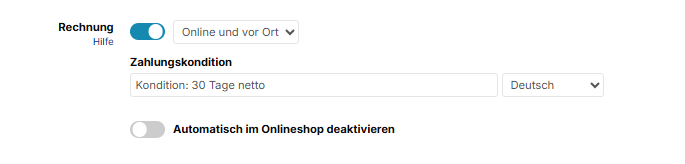
Select Settings → Ticketing system in your e-guma ticketing system menu. Here you can choose to offer invoices online and on-site, only on-site, or only online.
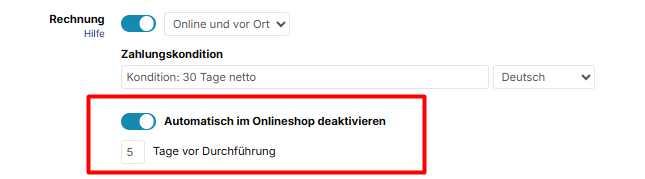
Automatically deactivate invoice in the online shop
You can optionally define how many days before an event or a calendar-based admission the invoice should be deactivated in the online shop.
If the customer selects a day for a calendar-based admission that exceeds the deadline, invoice payment will no longer be available.
Deactivate payment method in the online shop for individual events / admissions
You can deactivate invoice payments for individual events or admissions. To do so, assign the tag Online-shop-deactivate-invoice to the event. This tag can only be used if invoicing is activated in the ticketing system.
Online shop
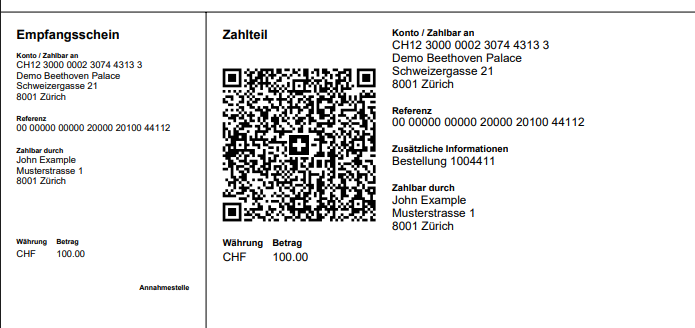
If invoice payment is available, an additional option Invoice appears on the checkout page. The customer can choose between online payment methods and invoice payment.

After completing the order, the invoice is sent together with the confirmation email and the tickets.
On-site sales
If you issue a ticket on invoice on site, you must enter the complete customer address.

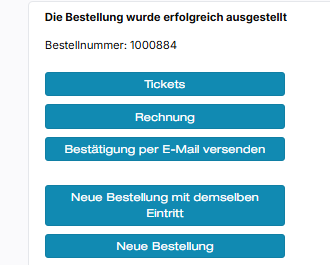
At the end of the order process, you can download and print the invoice and QR payment slip together with the tickets or send them by email.
Accounting
Basic information on ticket accounting can be found in this article. Invoice orders are listed in the sales report at the time of sale.

We recommend regularly posting the invoice total to a receivables account for QR-bills e-guma in your financial accounting system. Once invoices are paid, you will be informed via the credit report. Credits for the voucher and ticketing system can be posted in total and reduce the receivables account.
Automatic import
- 1
-
Daily (Monday–Friday), e-guma retrieves the payment files from the PostFinance server. All data is transmitted in encrypted form. At no time does e-guma have access to your PostFinance account.
- 2
-
e-guma processes the payment file and marks all orders paid on that day as paid in your e-guma ticketing system.
- 3
-
Afterwards, e-guma sends you the credit report by email. You will only receive this email if payments were credited to your QR-IBAN account. Learn here how to configure the email address for report delivery.
- 4
-
If an error occurs during processing, this is already indicated in the email subject line with the text “Error! Report of your PostFinance credits”. The error is also explained in the email body. Learn more about error messages.
- 5
-
e-guma stores the credit report and you can download it at any time under Accounting → QR-bill → Reports.
Credit report
Content and structure of the credit report
PostFinance transfers the total amount of invoice payments (usually one day after receipt of payment) from your QR-IBAN to your business account. The e-guma credit report serves as a reconciliation of your PostFinance business account statement and as an accounting document.

Download credit report
The credit report is stored in e-guma. Under Accounting → QR-bill → Reports you can view all reports and download them as PDF files.
Error messages
Reports with processing errors are marked with an exclamation mark icon in the report overview.
If an error occurred during processing, you will see it when opening the credit report. The affected order is highlighted in red and displays a corresponding message. Learn more about error messages.
If you cannot identify or resolve the error message, please contact us immediately. We will investigate the cause of the error.

Order management
Open invoices have the status Unpaid and are displayed in red.

On the order detail page it is also immediately visible whether an order has not yet been paid. In the toolbar you can download the invoice again at any time.

With the automatic processing of the QR-bill and payment assignment, the order is automatically activated. Marking the invoice as paid is visible in the history of the order.

When marking the invoice as paid, no additional entry appears in the sales report.
Mark as unpaid
If an order was incorrectly marked as paid, this can be reversed by clicking Mark as unpaid. You can also use this action if an order is switched from another payment method to invoice and the amount has not yet been paid.

Cancel
When cancelling an order with an unpaid invoice, only the option Same payment method as order can be selected.

Check-in
In the Excel participant list report, the Payment method column shows whether the invoice has already been paid. If it has not yet been paid, the note (unpaid) is displayed.
Dunning
Dunning of unpaid invoices must be carried out manually. Filter unpaid orders in the order management. The Excel export of these orders can be used as the basis for dunning.