
Two-factor authentication (2FA)
In this article, you will learn how to better protect your e-guma Backoffice from unauthorized access by using two-factor authentication.
In this article
- What is two-factor authentication (2FA)
- Authenticator apps
- Activate 2FA as a user
- Login with 2FA
- Deactivate your own 2FA
- Administrator functions
- Require 2FA for all users
- Overview in user management
- Exclude individual users from mandatory 2FA
- Deactivate 2FA via user management
- Small Clients
- Groups
- e-guma Apps & Web Check-in
What is two-factor authentication
Two-factor authentication, or 2FA, is a security mechanism that provides additional protection for user accounts. Instead of relying solely on a password, 2FA requires two different identification methods to verify a user’s identity.
- First factor (knowledge): Typically the password the user knows.
- Second factor (possession): For example, a mobile or desktop authenticator app — something the user possesses.
Authenticator apps
- Google Authenticator (App Store | Google Play)
- Microsoft Authenticator (App Store | Google Play)
- Duo Mobile (App Store | Play Store)
- Authy (App Store | Google Play)
- LastPass Authenticator (App Store | Play Store)
- Passwort Manager 1Password als Authenticator für die 2FA
These authenticator apps offer a convenient and secure method to manage the second factor of 2FA. They can also be used for other services besides e-guma.
Activate 2FA for users
Each user must activate and configure 2FA individually in their own user account.
My user
2FA can be activated under My User. Click your username in the e-guma header and select My User. In the Two-Factor Authentication section, start the activation process by clicking Activate.

For security reasons, you must confirm your password before starting. Then scan the displayed QR code with your authenticator app. Instructions for adding a new 2FA entry can be found in your app’s documentation.

After setup, your authenticator app generates a new code every 30 seconds. Enter the current code in the Code field to complete the setup in e-guma.

Please note the time limit of TOTPs. The code must be entered within the displayed validity period. With a valid code, 2FA setup can be completed.

Login with 2FA
Once 2FA is activated, every login to the e-guma Backoffice must be confirmed with the 2FA code. Open your authenticator app and enter the displayed code in the Code field.

With a valid code, login proceeds normally.
Trust device
To avoid having to verify every login with 2FA, you can pause 2FA on the same device for 30 days. Use this feature only on trusted devices within your company’s IT environment.

To pause 2FA for 30 days, select Trust. If you prefer 2FA verification for every login, for example on a public device, choose Do not trust.
Deactivate your own 2FA
Each user can deactivate their own 2FA at any time. Under My User, click Deactivate in the Two-Factor Authentication section. You must confirm the deactivation using a 2FA code. After entering a valid code, 2FA is disabled and can be re-enabled at any time.

Administrator functions
As an e-guma user with administrator and user management permissions, additional functions are available to you.
Require 2FA for all users
As an administrator, you can require 2FA for all users. In Settings → General, activate Require two-factor authentication for all users. Once enabled, users must activate 2FA within 10 days after their next login.
Users will be notified of the requirement at their next login. They will also see the deadline and may activate 2FA immediately or postpone it.

Overview in user management
User management displays which users already use 2FA and which do not.

Exclude individual users from mandatory 2FA
If Require 2FA for all users is enabled, you can exclude specific users. In the user’s settings, enable Do not require 2FA for this user. These users remain excluded from the obligation but still receive a recommendation during login.
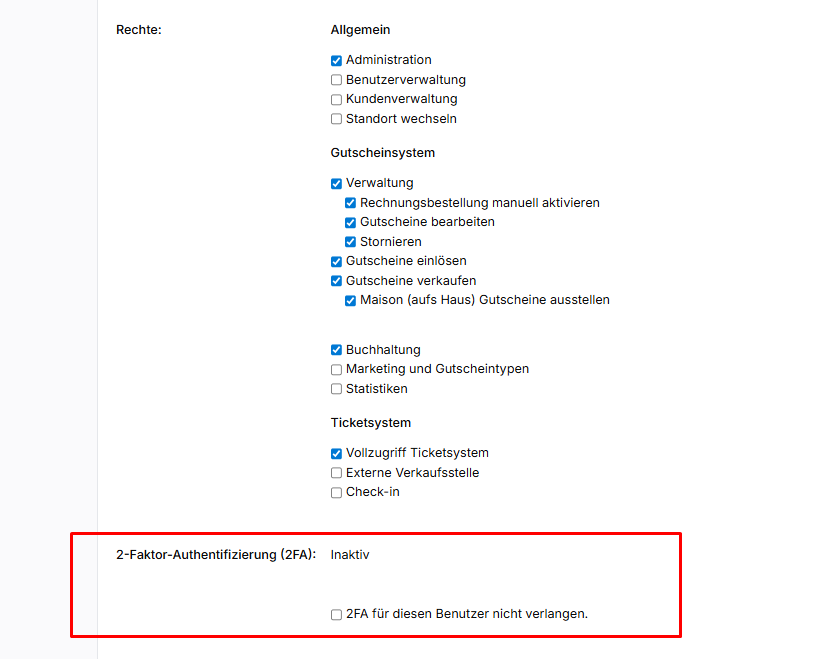
Deactivate 2FA via user management
Administrators can deactivate 2FA for users. In the user profile, click Deactivate 2FA. A notification email is sent to the user. Administrators cannot deactivate their own 2FA for security reasons.

Groups
In e-guma Group, it is possible to create cross-client users. These users can switch between clients without logging in again. For such users, 2FA must be activated in the group client. Activation while logged into a group member is not possible.
Small Clients
For Small Clients belonging to an organizational solution, 2FA is not available because they offer a reduced user interface.
e-guma Apps and Web Check-in
For the e-guma Voucher App, the e-guma Ticket App, and the Web Check-in, 2FA is currently not available.