
Waiting list for events and all-day admission tickets
In this article
e-guma offers a convenient waiting list feature for events and all-day admission tickets. When a date is sold out, interested customers can join the waiting list. As soon as tickets become available again, you can easily notify them by email.
Activate the waiting list
Enable the Waiting list in the advanced settings of an event or admission ticket with all-day calendar slots. The waiting list is not available for admission tickets with time slots, as customers can usually choose another slot.

Display in the online shop
Overview
When an event with an active waiting list is sold out, a waiting list notice appears on the event image.

A sold-out notice and a button to join the waiting list are also displayed on the detail page, allowing your customers to register.
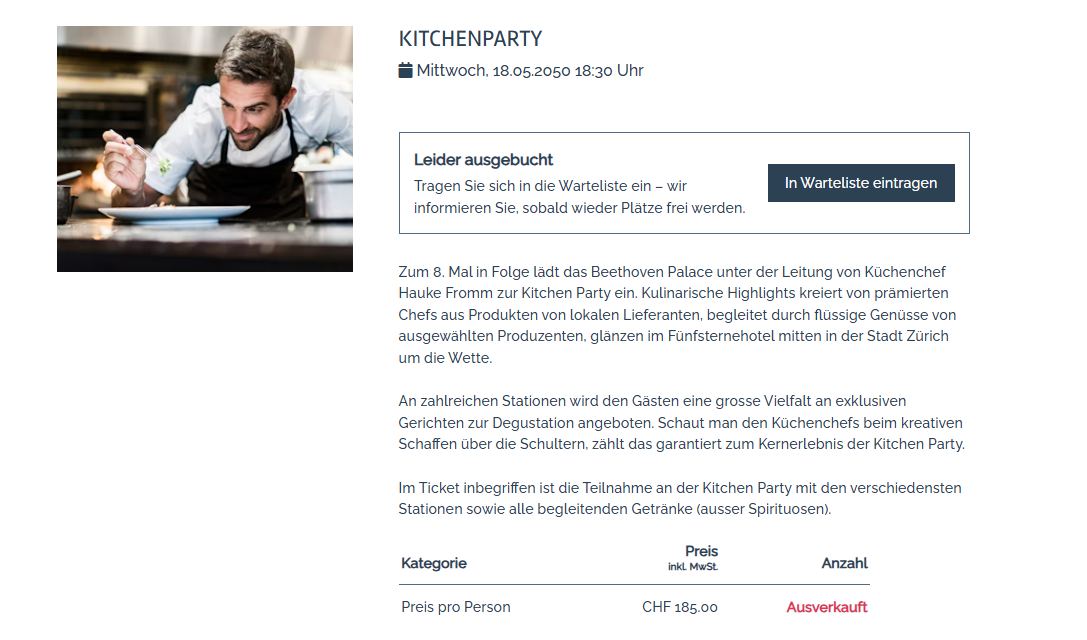
For events with quotas at ticket variant level, customers can only join the waiting list once all ticket variants are sold out.
Grouped event categories
When the waiting list is available, sold-out events can also be opened on event category pages that are grouped by date.

All-day admission tickets
When the waiting list is enabled, sold-out days can also be selected in the calendar. A notice and a link to the waiting list are displayed so customers can register.

Join the waiting list
To join the waiting list, all fields in the form must be completed. The setting for the minimum or maximum number of tickets per order is taken into account. For example, if a minimum of two tickets is specified, waiting list entries are only possible for two or more people. A CAPTCHA must be completed before submitting the entry.

After registering successfully, the customer receives a confirmation email.

Waiting list in the back office
In the e-guma back office, you can view waiting list entries under Participants → Waiting list.

View entries
The Events / Admission tickets dropdown lists all events or admission tickets for which the waiting list is enabled. The Notified filter is optional.
When an admission ticket is selected, you must also select the Start or the desired slot. Only slots from the past two weeks and the next six months are displayed, with the number of existing entries shown in brackets.


Delete an entry
You can delete waiting list entries using the three-dot menu.

Notify customers
When places become available again for a sold-out event or all-day slot, you can notify one or more customers on the waiting list directly through e-guma. Select the relevant entries and click the Notify selected customers button.

Then confirm that you want to send the notification to the selected customers.


Dashboard
In the e-guma Dashboard, the number of waiting list entries indicates that the waiting list is active.

Use the three-dot menu to go directly to the corresponding waiting list.

Display in the dashboard calendar

Limitations
- The waiting list is not available for admission tickets with time slots or the Skidata calendar.
- New waiting list entries cannot be created in the back office. Entries can be created through the online shop.